Music listening behaviour in Smart Homes. Improving the smart speaker music management experience
Project Overview: Not just another tool for listening to music. Empowering users with smart home speakers to automate music behaviours
Music Assistant is one of Home Assistant’s key maintained projects. Fundementally it allows users to listen to music via their existing streaming services as well as local files, internat radio and other sources. The very unique aspects are the ability to manage and control smart audio players from the Music Assistant interface as well as set up automations in your smart home that play audio.
Music Assistant’s interface, like many of Home Assistant’s interfaces and tools, were primarily created by developers and OSS contributors that have some knowledge of UX and Ui best practices that can apply to their own use cases and other power users use cases but the UX and UI was not focused towards enabling less familiar, technical and interested to operate the features with comfort.
This project describes some of the iterative UX and UI improvements to Music Assistant over my time working at The Open Home Foundation and less of a ‘contained’ project. I’ll be diving into a few significant releases over 2025 to 2026.
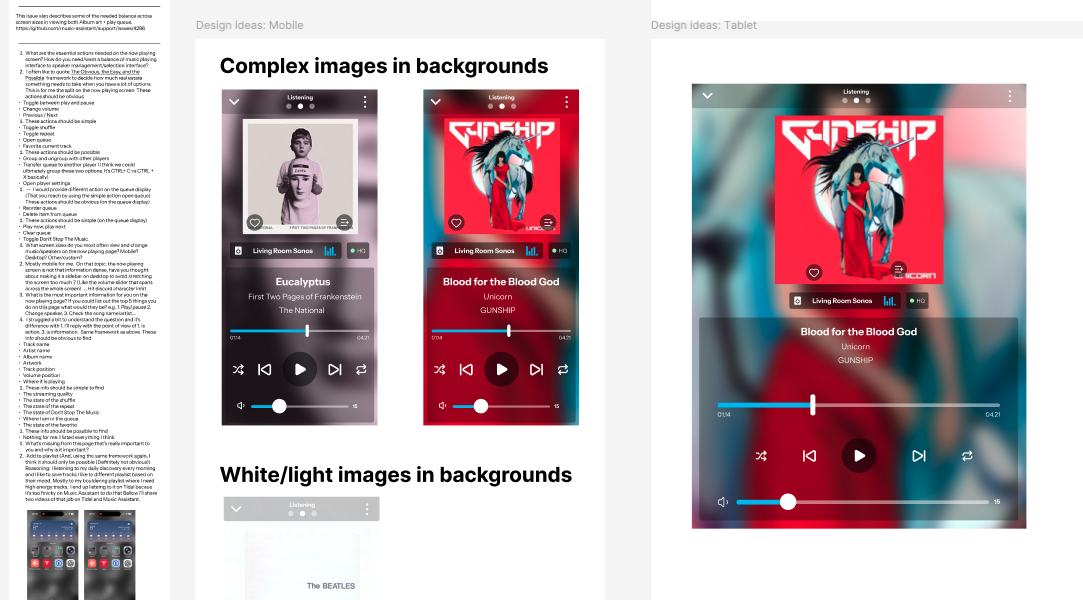
Above: Early ideas on how to improve the page that shows what audio is playing right now. This also shows a snippet of the detailed user feedback that I keep stored in the design files for quick reference
Goals and Constraints
Music Assistant, like many tools and technology that starts out as a ‘scratch your own itch’ OSS project. It was created to be used by the creators and thos emost like the creators. But, like with all software, as soon as someone other than you uses it you have a variant user type. No 2 users will use a tool in exactly the same way, under the same motivaions and for the same purpose (or this is statistically very unlikely!). So Music Assistant struggles to understand who it serves and how prominently it serves who.
Music Assistant is leaning into a ‘Smart Home Enthusiast’ user. One that has time, abilitya nd interested in ’tinkering’ around with settings, features, set-up and updating. As such many of the feature improvements focus on these power users while still hoping that non-power users find their own way. My personal goal as a usability and human centered designer was to improve new user accessibility and usability with every design iteration.
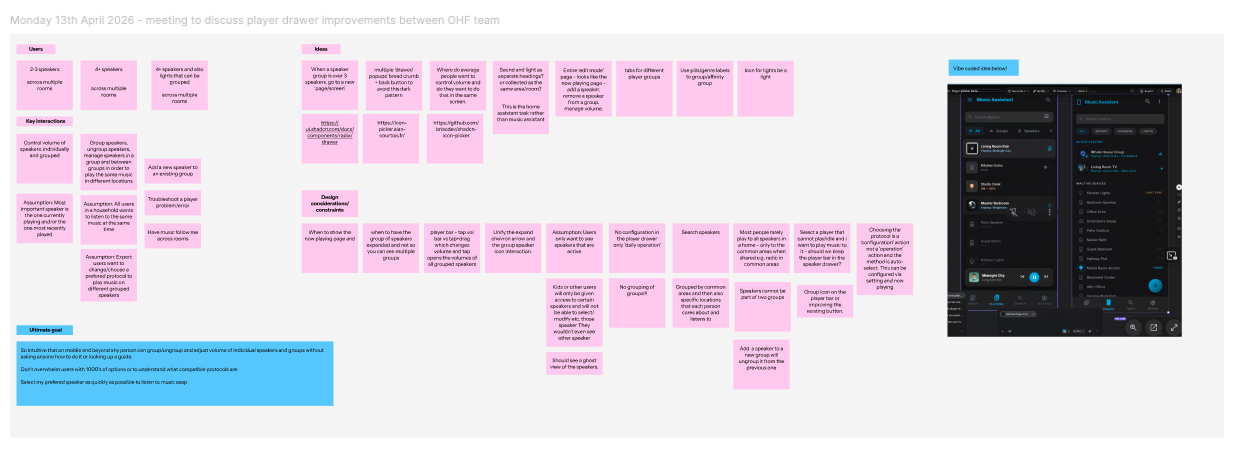
Above: Example of a stakeholder meeting outputs where I gathered all perspectives and constraints
User goals
- Enjoy listening to music from across streaming services, local files and audio types.
- For multiple people in a smart home to be able to listen to different audio across different smart devices/speakers.
- For the admin of the Music Assistant system to have a level of access and control to destructive actions like how loud audio can be played, in certain locations under certain circumstances e.g. late at night.
- To Understand better what the playable audio situation is in their own smart home and have the ability and process avaialble to automate what they want.
Organisation goals
- Release quickly, understandable and community approved features and improvements.
- Uderstandable UX and UI that make critical actions more simple, understandable and enjoyable to use.
- For users to discover and use as many features, settings and configurable options as they have access to and know about.
- More users adopt Music Assistant as a preferred music listening tools while a user in in their smart home.
- To appeal to music and audio geeks by offering features and settings that prioritise audio quality and protocol playing mode as a clear option.
Methods and Process
The typical process for Music Assistant was:
- A Design, development or a community user raises an issue, feature request or an enhancement topic. These should connect to the larger organisational goals for the year to have focused resource on them and be wanted by the community of users.
- Scoping and cinfirmation of UX and User Research exploration. This is where was assess whether the work can be done primarily by development with design support, advice and quick involvement or by a more detailed design exploration process. This typically happened when a critical feature was being discussed and the stakeholders had very strong differing evidence or opnions about direction.
- Deeper design investigated design solutions, validated them with stakeholders and community, sometimes with structured usability testing or research conversations. If user validation was not possible we looked to the standards set by similar technologies.
- Design exploration continues until user community and stakeholder approval was gained and all design acceptance criteria were met.
- A ‘good enough’ design went over to development where if adaptions were made, we re-convened as a team and community to address the adaptions that often came from discoveries in implementation.
Impact and Outcomes
The two features that produced the most impactful outcomes were improving the don’t stop the music feature and improving the player drawer speaker management experience.
Don’t stop the music was a feature that had a function twin. There were two features that produced an incredibly similar output of continuous music being played. Initial conversations explored the differences functionally and from a user’s point of view of these features. We discovered they could be easily merged into a new feature called ‘Autoplay’. This name matched other music streaming platforms and we looked at these to aggregate the UI and UX implementation.
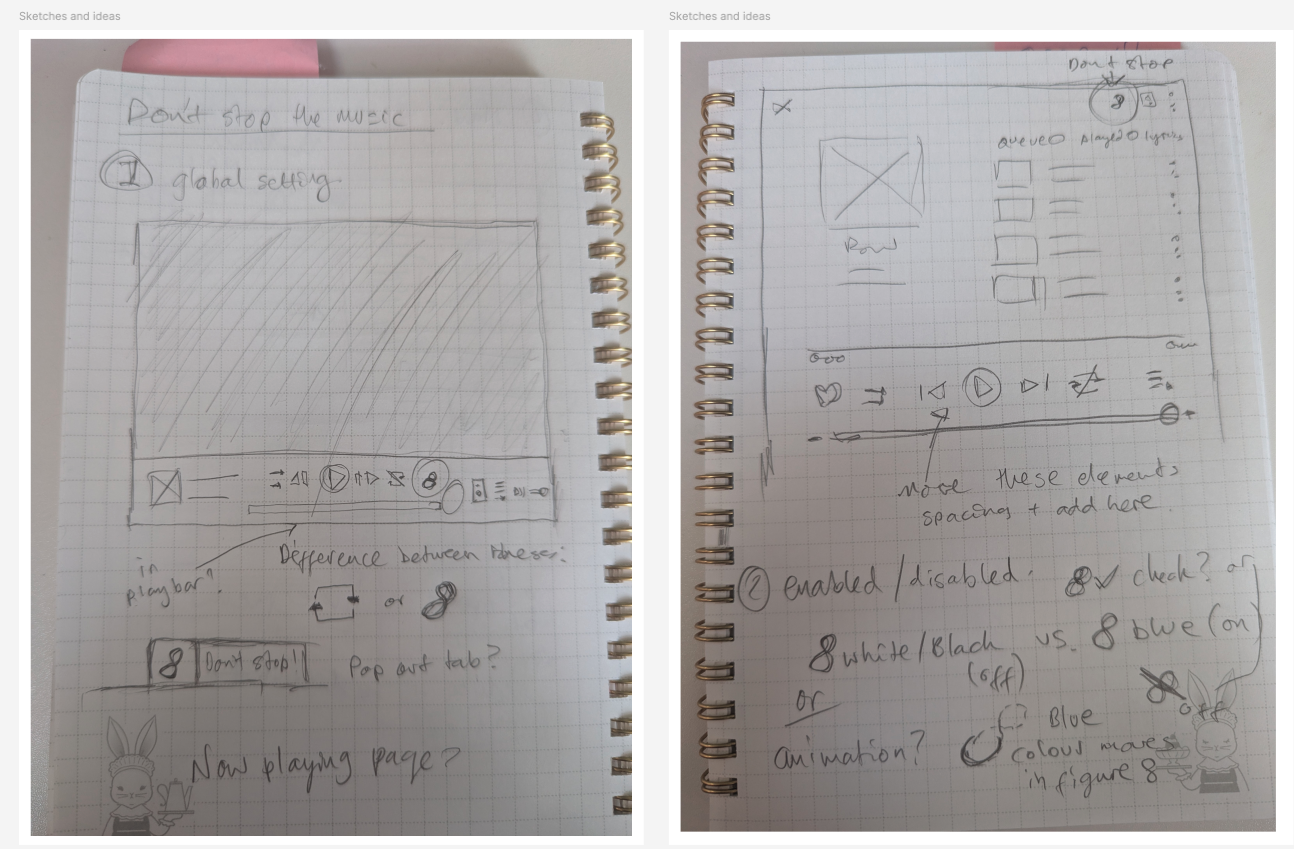
Above: Sketches of don’t stop the music improvements
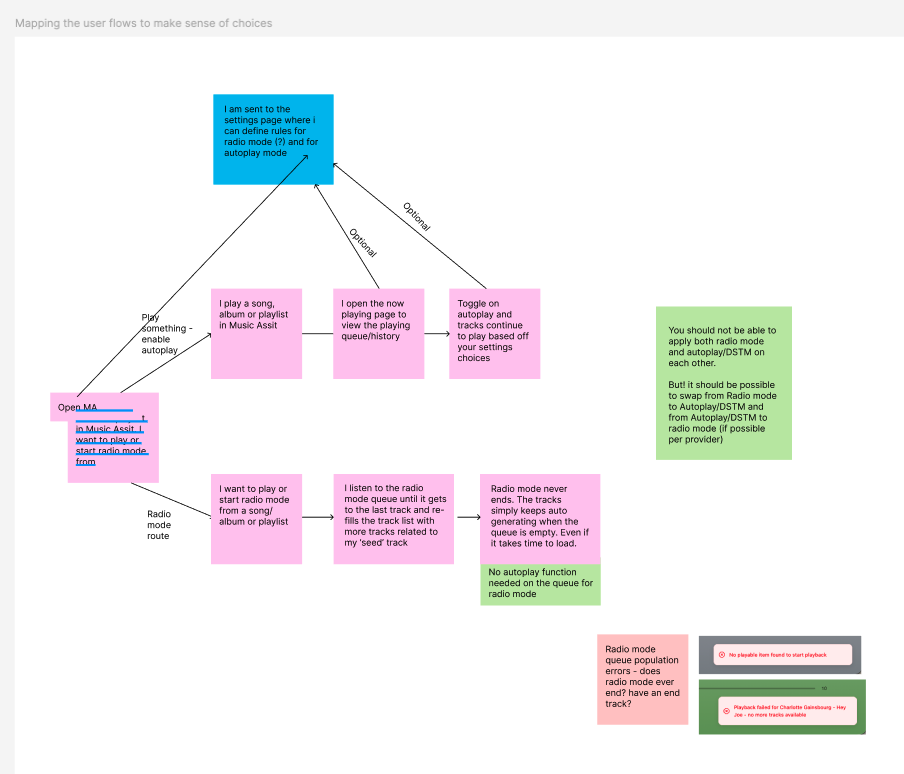
Above: The mental map of ‘don’t stop the music’ from a user pov
A first simple phase focused on the visual design, from icons, colours and animations and progress to where this feature should live. After 3 rounds of design we settled on the player queue page since this was where a user views what music tracks are populating the autoplay queue and under what rules.
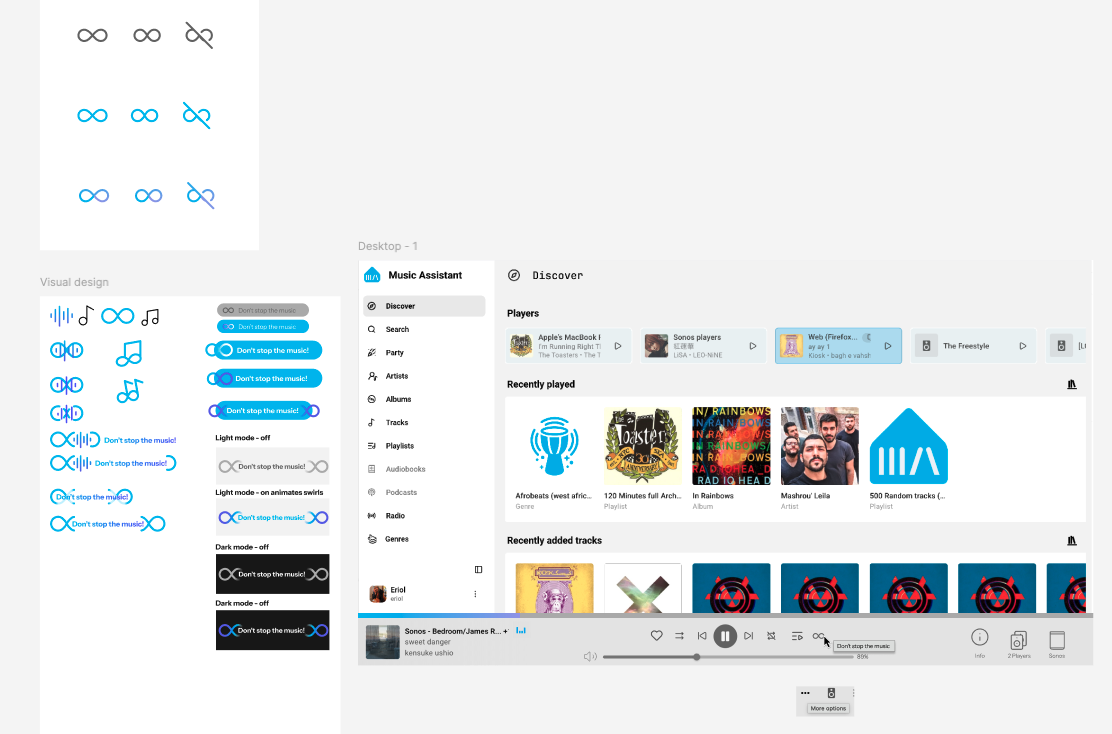
Above: Early visual design ideas for autoplay
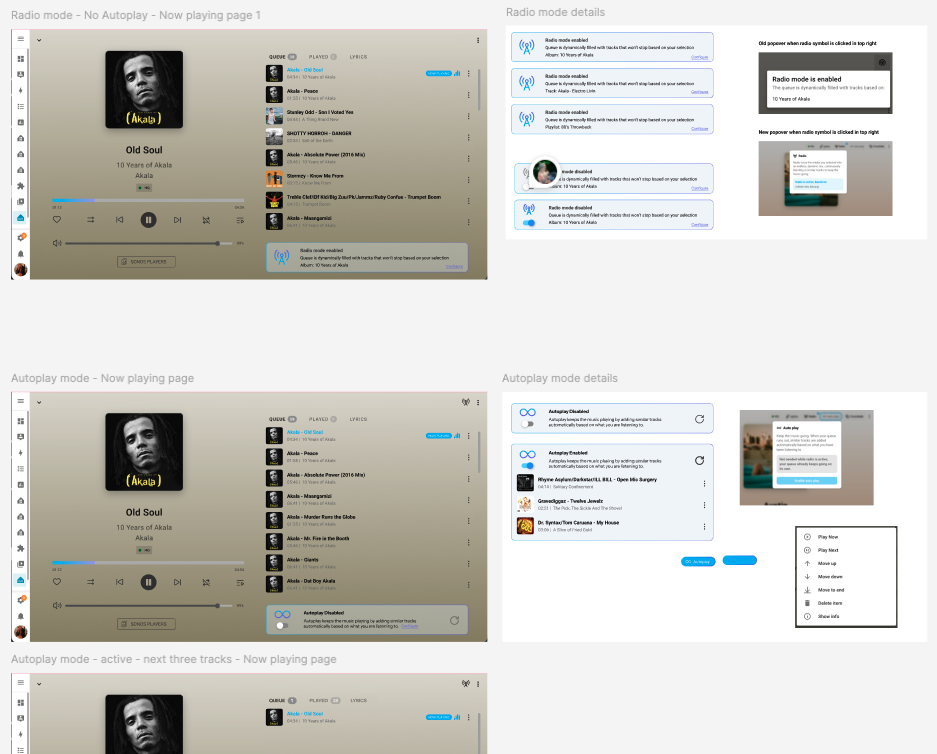
Above: Implementation close UX/UI design ideas for autoplay
There was pushback from the development team on the positioning of button functions, how UI should appear when it’s ‘running’ and also positioning a functional feature in the music track play queue. Presenting the design rationale for these choices took extensive research and conversation about the usability heuristic recognition and recall in user interfaces and that functions should be close in proximity to function they effect.
The second feature implementation is improving finding smart speakers, understanding the state of smart speakers (are they playing audio? How loud? Is speaker 1 grouped with speaker 2? etc.)
The main UX issue here was the way of viewing, editing, grouping, deleting, renaming smart speakers was all done in a single minimal slide out ‘UI drawer’. This drawer UI offered high amounts of cognitive load in a small space (on larger screen sizes at least) with little opportunity to pace the cognitive load of that task-heavy section of the Interface.
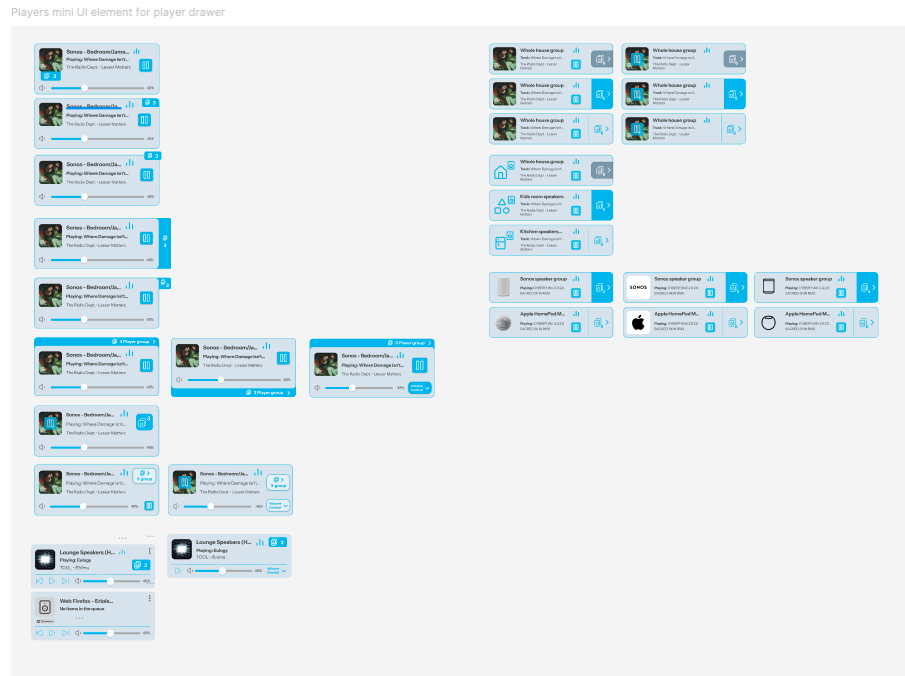
Above: Early visual design ideas for the individual speaker section within the drawer.
Much of the early design work was focused on isolating the essential operations that users want to do and how they might be done in combnation of sequences and what we wanted to assert as the ‘best’ opinionated sequece of function.
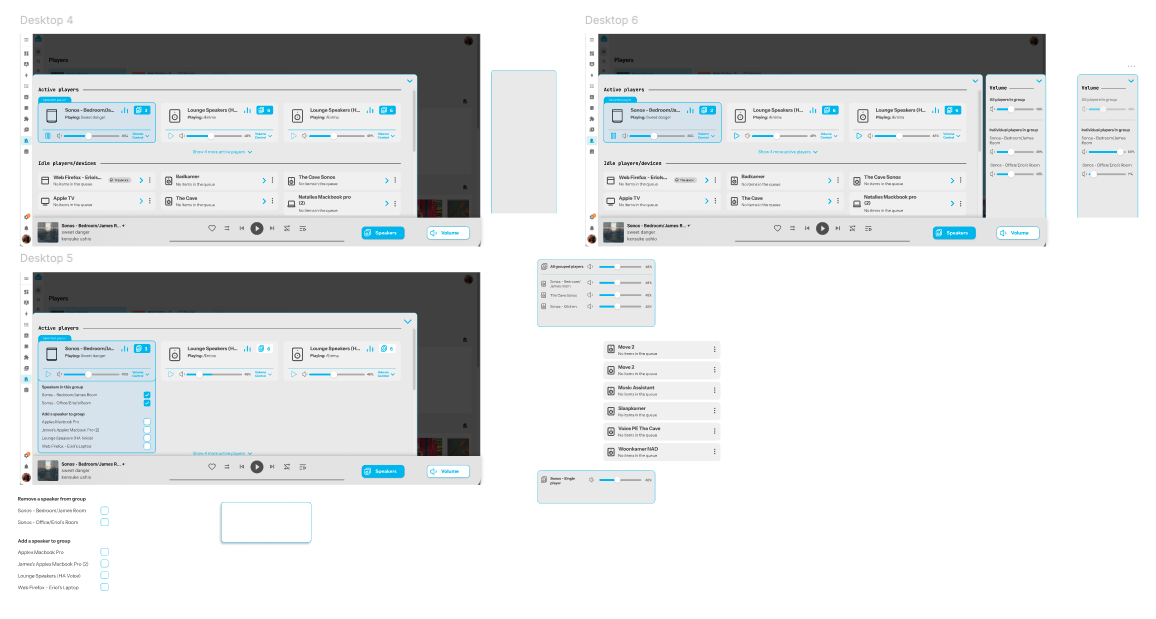
Above: Finding layouts that optimise available screen size and don’t default to the smallest mobile view if more space is available for users
I worked on moving functions to other nearby UI, like the ’now playing bar’ along the bottom of the screen and seeing if we can have several menus that have a single main function and sub functions that connect to the primary function. This mean’t eventually we created three sections on the right hand of the now player bar as a kind of ‘menu’ that allowed for 3 primary actions of volume control, speaker grouping and speaker overview with play/pause controls and focus change.
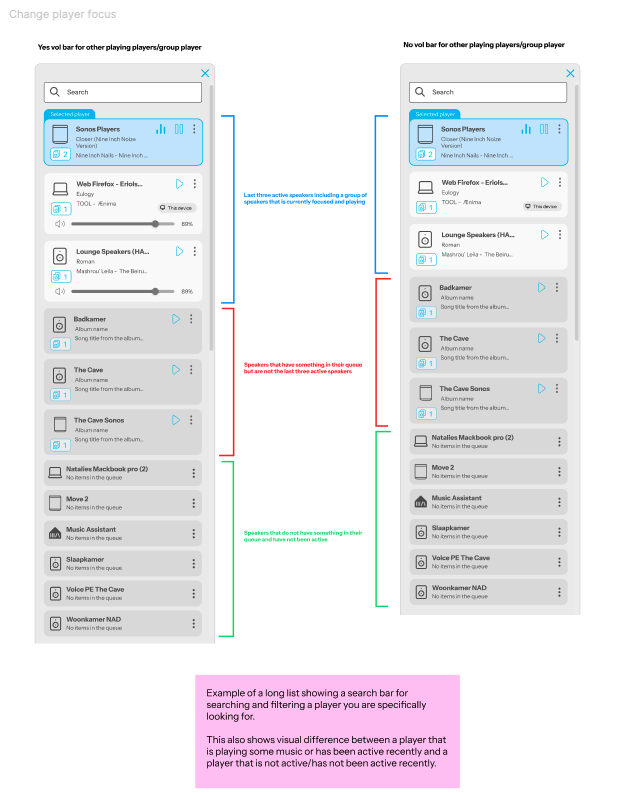
Above: Clear sectioning of the speaker overview UI where we cwanted to ensure a clear hierarchy of playing, idle and sleeping smart speakers.
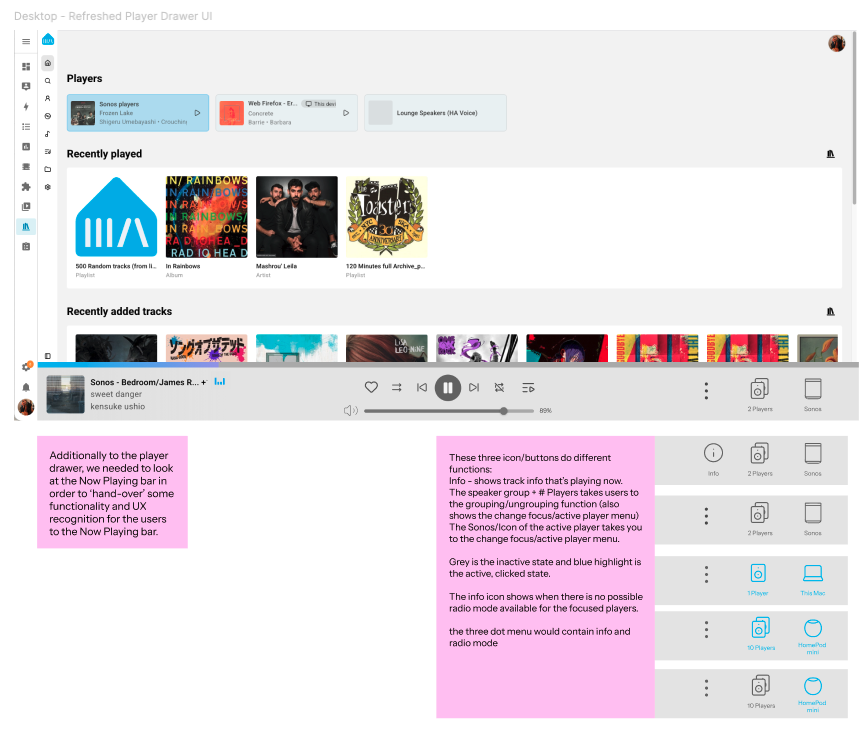
Above: A snapshot of the three right hand menu options on the play now bar with contextual to the smart speaker icons to enable quick user recognition.